When a screen feels like too much
Start gentle. Adjust it yourself.
A selective screen dimmer
For a screen that still feels too bright even on the lowest brightness. Vignet adds an adjustable fade around your display: the outer light falls away while the part you are looking at stays unchanged.
Windows available now · macOS planned · One payment. No account, subscription or usage tracking.
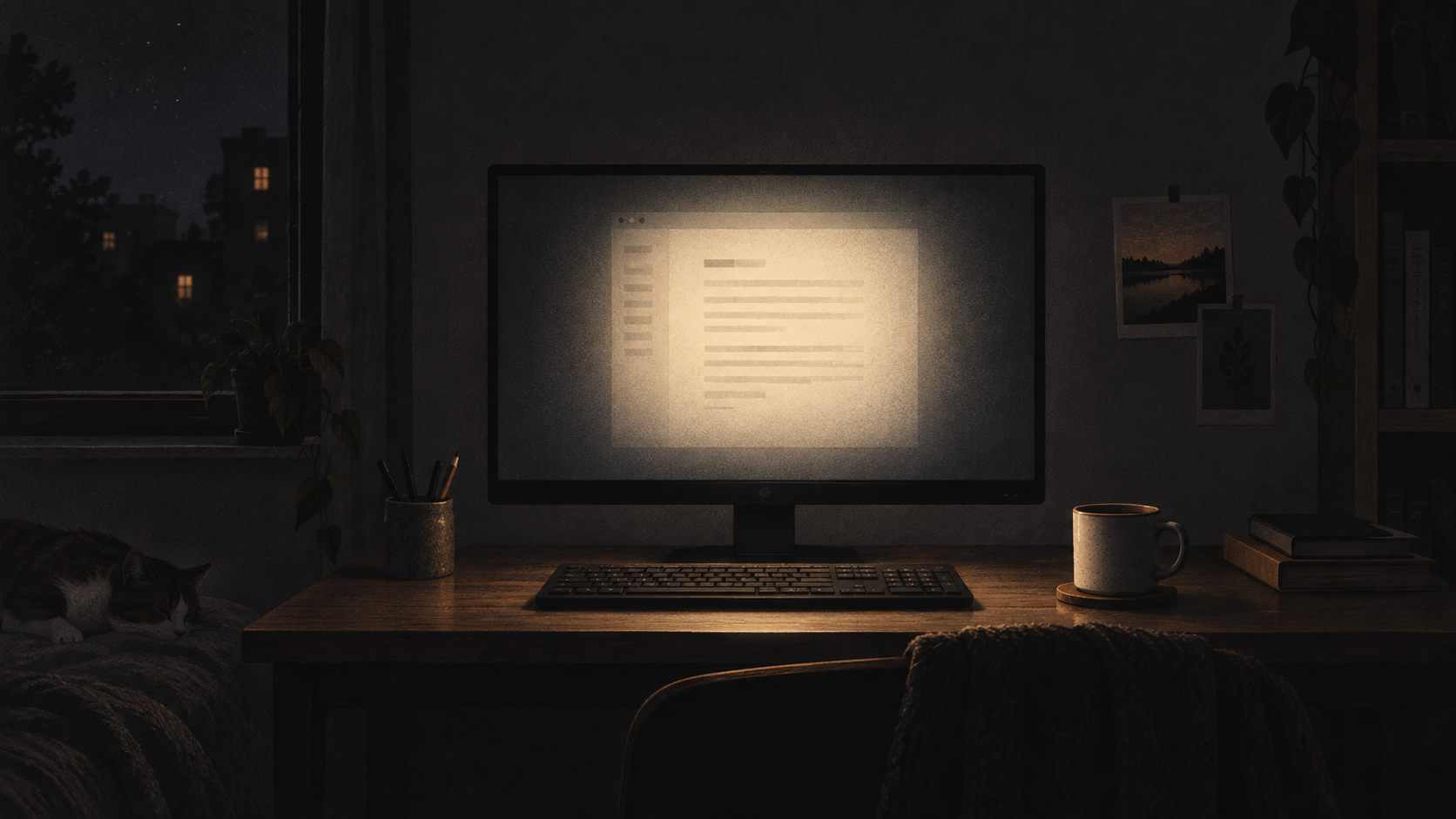
Choose a starting point, then hold the compare button. This visual preview explains the shape of the effect; it is not the Windows app running on your desktop.
Vignet is on
Soft edges. Clear centre.
A screen tweak small enough to forget — and obvious when you switch it off.
Start with a preset
This preview runs only inside the page. The Windows app applies the effect to your primary display.
The app you get
This is the current Windows app. Strength sets how dark the fade becomes, range sets how far it reaches, and softness controls the transition. Close the controls and the overlay stays quietly on your desktop.
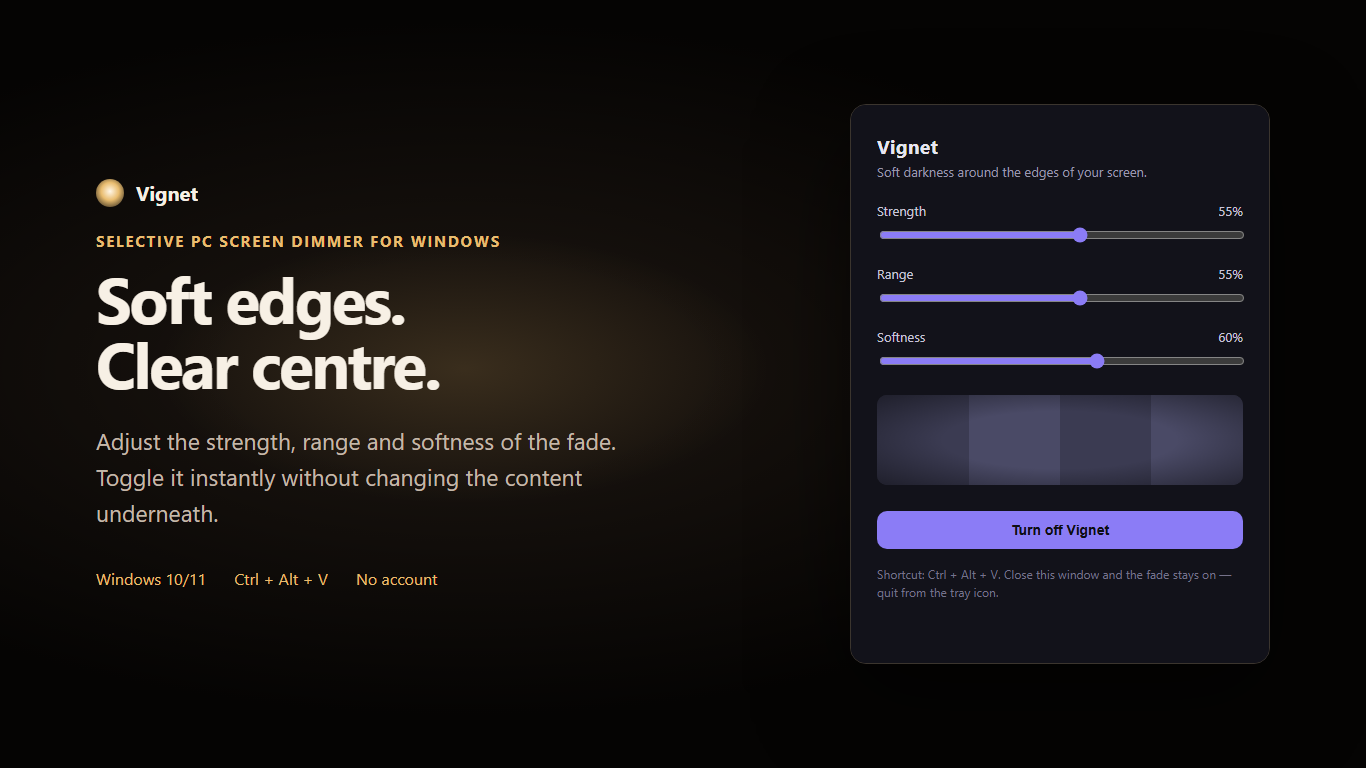
The exact difference
Most screen dimmer apps reduce the whole image. Vignet changes the distribution instead: it places a soft, adjustable vignette over the display so the periphery becomes darker while the centre remains clear. If you have used Extra Dim on a phone, the intent is familiar — except Vignet dims the outside of the screen and leaves the part you are reading alone.
Brightness controls dim everything.
f.lux and Night Light change colour.
Vignet dims the periphery.
Start gentle. Adjust it yourself.
Toggle it instantly with Ctrl + Alt + V.
A normal utility. No account or profile.
Made for the hours after the room goes dark.
$3.99one-time Windows purchase
Current release scope
Windows 10/11, primary display. Full-screen and capture behaviour can vary.
Signed, installed and updated through Microsoft Store.
Secure checkout, installation and updates from Microsoft. Local price shown in Store.
That is the situation Vignet is built for. It does not lower your monitor's backlight below its minimum; it lays a soft dark fade over the outer part of the picture, so the bright surround drops while the centre stays readable.
Same intent, different method. Extra Dim darkens the entire display. Vignet darkens only the outside of the screen and leaves the middle as it is, and you set the width, strength and softness yourself.
The current Windows version applies Vignet to the primary display. Multi-monitor controls are planned, but are not in this release.
Vignet is a separate click-through overlay and does not inject into the game. Exact behaviour can vary between fullscreen modes, so use the Ctrl + Alt + V hotkey whenever you want it out of the way.
Capture behaviour can vary by application. Toggle Vignet off with Ctrl + Alt + V before a capture when the result matters.
The current release is available for Windows 10 and 11. A macOS version is planned, but Mac customers cannot purchase it yet.